
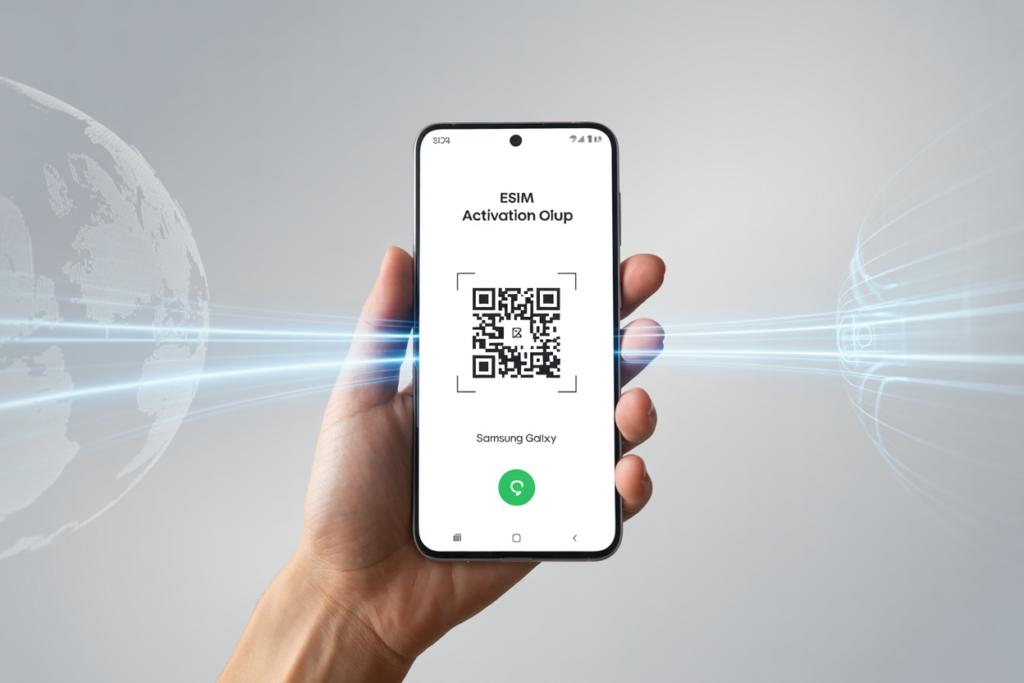
How to Activate eSIM on Android: Complete Guide for Samsung, Pixel & More (2026)
If you’re ready to embrace the future of mobile connectivity, learning how to activate eSIM on Android devices is easier than you might think. Whether you own a Samsung Galaxy, Google Pixel, or another compatible Android phone, this comprehensive guide will walk you through every step of the eSIM activation process.
What Is eSIM Android Technology?
An eSIM (embedded SIM) is a digital SIM built directly into your smartphone. Unlike traditional physical SIM cards, eSIM Android technology allows you to activate cellular plans without swapping tiny plastic chips. According to the GSMA, the global standards body for mobile communications, eSIM adoption is growing rapidly, with over 2 billion eSIM-enabled devices expected by 2026.
The benefits are significant: instant activation, the ability to store multiple carrier profiles, and no risk of losing or damaging a physical SIM card. For travelers, eSIM Android capability means connecting to local carriers the moment you land, without hunting for a SIM vendor. If you’re new to this technology, check out our Complete Beginner’s Guide to eSIM.
Which Android Phones Support eSIM?
Before diving into activation, you’ll need to confirm your device supports eSIM. According to Google’s official Android support documentation, eSIM compatibility depends on both hardware and carrier support.
Samsung Galaxy Devices with eSIM
Samsung has embraced eSIM technology across its flagship lineup:
- Samsung Galaxy S24, S24+, S24 Ultra – Full eSIM support
- Samsung Galaxy S23 series – eSIM + physical SIM (Dual SIM)
- Samsung Galaxy S22 series – eSIM supported
- Samsung Galaxy S21 series – eSIM supported
- Samsung Galaxy Z Fold 5/6 & Z Flip 5/6 – eSIM supported
- Samsung Galaxy A54 5G – eSIM in select regions
You can verify your Samsung’s eSIM capability by going to Settings > Connections > SIM Manager.
Google Pixel Devices with eSIM
Google Pixel phones have supported eSIM since the Pixel 2. As documented by Google Fi support, current compatible devices include:
- Google Pixel 8, 8 Pro, 8a
- Google Pixel 7, 7 Pro, 7a
- Google Pixel 6, 6 Pro, 6a
- Google Pixel Fold
Other Android Brands
Other manufacturers with eSIM Android support include:
- OnePlus (OnePlus 12, 11)
- Xiaomi (Xiaomi 14, 13 series)
- Motorola (Razr series, Edge 40+)
- OPPO (Find X6 Pro, Find N3)
How to Activate eSIM on Samsung Galaxy
Setting up eSIM on your Samsung device takes just a few minutes. The Samsung Support website provides official guidance, but here’s the complete process:
Step 1: Get Your eSIM QR Code or Activation Details
First, purchase an eSIM plan from your chosen provider. Popular options for travelers include:
- Airalo – Coverage in 200+ countries
- Holafly – Unlimited data plans
- Nomad – Competitive regional plans
- Your home carrier – Many offer eSIM activation
After purchase, you’ll receive either a QR code or manual activation details (SM-DP+ address and activation code).
Step 2: Access Samsung SIM Manager
- Open Settings on your Samsung Galaxy
- Tap Connections
- Select SIM Manager (or SIM Card Manager on older models)
- Tap Add eSIM
Step 3: Scan QR Code or Enter Details Manually
QR Code Method (Recommended):
- Select Scan QR code from service provider
- Point your camera at the QR code
- Wait for the profile to download
Manual Entry Method:
- Select Enter activation code
- Enter the SM-DP+ address
- Enter the activation code
- Tap Connect
Step 4: Confirm and Activate
- Review the carrier information
- Tap Confirm
- Wait for activation (usually 1-5 minutes)
- Enable the eSIM when prompted
How to Activate eSIM on Google Pixel
Google Pixel devices offer a streamlined eSIM Android experience. According to Google Pixel Help, the process is straightforward:
Step 1: Open Network Settings
- Go to Settings
- Tap Network & internet
- Select SIMs (or Mobile network)
- Tap Add or the + icon
Step 2: Choose Your Activation Method
You’ll see options to:
- Scan a QR code – Use your camera
- Use a carrier app – For supported carriers
- Enter code manually – Type activation details
Step 3: Complete Setup
- Follow the on-screen prompts
- Name your eSIM profile (helpful for dual-SIM users)
- Choose whether to use it for calls, texts, and/or data
- Enable the profile
If you also use an iPhone, see our iPhone eSIM activation guide for those devices.
Troubleshooting Common eSIM Android Issues
Even with proper steps, you might encounter activation problems. The Federal Communications Commission (FCC) notes that mobile connectivity issues are common during transitions. Here’s how to solve typical problems:
“eSIM Cannot Be Added” Error
Solutions:
- Ensure your device is connected to WiFi or mobile data
- Restart your phone and try again
- Check that your carrier supports eSIM activation in your region
- Verify the QR code hasn’t expired (most are valid for 30-90 days)
eSIM Not Appearing After Activation
Solutions:
- Go to SIM Manager and manually enable the profile
- Restart your device
- Check for carrier network outages using Downdetector
“Invalid Activation Code” Message
Solutions:
- Double-check for typos if entered manually
- Ensure you’re using the correct format for SM-DP+ address
- Contact your eSIM provider for a new code
No Mobile Data After Activation
Solutions:
- Ensure mobile data is enabled for the eSIM profile
- Check APN settings (your provider should supply these)
- Toggle airplane mode on and off
- Manually select the network operator
eSIM Android for International Travel
One of the biggest advantages of eSIM Android technology is seamless international connectivity. According to Statista, the global eSIM market is projected to reach $16.3 billion by 2027, driven largely by traveler demand.
Benefits for Travelers
- Instant activation – Set up before your flight lands
- No physical SIM hunting – Avoid airport kiosks and vendor shops
- Dual SIM convenience – Keep your home number active while using local data
- Easy switching – Change carriers without swapping cards
- Cost savings – Compare rates from multiple eSIM providers
Planning a trip to Europe? Check out our Best eSIM for Europe Travel 2026 guide for country-specific recommendations.
Best eSIM Providers for Android Users
Based on coverage, pricing, and user reviews from Trustpilot:
| Provider | Best For | Coverage |
|---|---|---|
| Airalo | Budget travelers | 200+ countries |
| Holafly | Unlimited data needs | 100+ destinations |
| Nomad | Regional plans | 100+ countries |
| aloSIM | Pay-as-you-go | 170+ countries |
Managing Multiple eSIM Profiles
Most eSIM Android devices can store multiple eSIM profiles, though typically only one can be active at a time alongside a physical SIM. As explained by Android Authority, this makes it easy to maintain separate profiles for:
- Home carrier (personal)
- Work line
- Travel data plans
- Regional carriers
For digital nomads, this flexibility is invaluable for staying connected across multiple countries.
How to Switch Between eSIM Profiles
On Samsung: Settings > Connections > SIM Manager > Select the profile to activate
On Pixel: Settings > Network & internet > SIMs > Toggle the profile
Security Considerations for eSIM Android
The National Institute of Standards and Technology (NIST) has noted that eSIMs offer enhanced security compared to physical SIMs. Benefits include:
- No physical theft risk – Can’t be removed without device access
- Remote locking capability – Disable via manufacturer’s security features
- Encrypted profiles – Stored securely in device hardware
However, practice standard mobile security: use strong PINs, enable biometric locks, and only download eSIM profiles from verified providers. Wondering how eSIM compares to traditional options? Read our eSIM vs Physical SIM comparison.
The Future of eSIM Android Technology
With Apple moving to eSIM-only iPhones in the US market, Android manufacturers are following suit. Future Android devices may eliminate physical SIM trays entirely, making eSIM Android technology the standard for all mobile connectivity.
Activating eSIM on your Android device opens up a world of flexible, convenient mobile connectivity. Whether you’re preparing for international travel or simply want the convenience of dual-SIM capability, mastering eSIM Android activation puts you ahead of the mobile technology curve.
Frequently Asked Questions
Yes! Most modern Android phones with eSIM support allow Dual SIM Dual Standby (DSDS), meaning you can have both an eSIM and physical SIM active simultaneously. This is perfect for keeping your home number while using a travel data eSIM.
How many eSIM profiles can I store on my Android phone?Most Android devices can store 5-10 eSIM profiles, though only one or two can be active at once. Samsung Galaxy phones typically support up to 5 stored profiles, while Google Pixel devices can store multiple profiles depending on the carrier.
Do I need WiFi to activate an eSIM on Android?Yes, you need an internet connection (WiFi or existing mobile data) to download and activate an eSIM profile. This is because the activation process requires downloading the carrier profile from remote servers.
Can I transfer my eSIM to a new Android phone?eSIM profiles are typically device-specific and cannot be directly transferred. You’ll need to contact your carrier or eSIM provider to deactivate the profile on your old device and reactivate it on your new phone, usually requiring a new QR code.
Is eSIM more secure than a physical SIM card?Yes, eSIMs offer enhanced security. They cannot be physically removed from your device, making SIM swap fraud more difficult. The eSIM profile is also encrypted and stored in secure hardware, protecting your carrier credentials.
Why isn’t my eSIM working after activation?Common causes include: the eSIM profile not being enabled in SIM Manager, incorrect APN settings, or carrier network issues. Try restarting your device, toggling airplane mode, or verifying your mobile data settings are correctly assigned to the eSIM.