
eSIM Data Management Tips for Travelers: Save Every MB
You’ve bought an eSIM for your trip. The QR code scanned, the profile activated, and you’re ready to go. But here’s the thing most travelers figure out too late: a 5 GB data plan can vanish in two days if you’re not paying attention. Background app refreshes, automatic photo uploads, HD video streaming on cellular… your phone is working against you. And if something goes wrong, our eSIM troubleshooting guide covers the common fixes.
Managing your eSIM data while traveling isn’t complicated, but it does require some intention. This guide covers the practical steps that actually matter, from pre-trip setup to real-time monitoring, so you don’t end up buying a second data plan in the middle of your vacation.
📺 Video Guide
Why eSIM data management matters more than you think
Most eSIM plans give you a fixed amount of data for a set number of days. Unlike your home plan where you might have 50 GB or unlimited data, travel eSIMs typically range from 1 GB to 20 GB. That sounds like plenty until you realize how quickly modern smartphones consume data in the background.
According to Ericsson’s Mobility Report, the average smartphone user consumes around 21 GB of data per month. That’s roughly 700 MB per day. On a 5 GB travel eSIM plan, you’d burn through your entire allowance in about a week at normal usage, and that’s assuming you don’t stream a single video.
The real issue is that your phone doesn’t distinguish between home WiFi behavior and cellular usage abroad. Apps that quietly sync in the background at home become expensive data drains when you’re on a limited travel plan.
Before you leave: pre-trip data setup
The best time to manage your data is before your trip starts. Spending 15 minutes on these settings will save you from scrambling later.
Download everything you can on WiFi (if you haven’t set up your eSIM on iPhone yet, do that first)
This single step will cut your data usage dramatically. Before you leave home, download:
- Offline maps in Google Maps or Apple Maps for your destination. Navigation uses surprisingly little data, but loading map tiles does not.
- Music and podcasts for offline listening. Spotify and Apple Music both support offline downloads. Streaming music at normal quality uses about 70 MB per hour.
- Translation language packs in Google Translate for offline use.
- Entertainment from Netflix, YouTube Premium, or your preferred streaming service for flights and downtime.
Turn off automatic cloud syncing
Your phone constantly uploads photos, contacts, app data, and documents to the cloud. On WiFi, you never notice. On a travel eSIM, this becomes a problem.
On iPhone, go to Settings > Photos and disable “Use Cellular Data” for iCloud Photos. On Android, open Google Photos > Settings > Back up & sync and set it to WiFi only. Do the same for Google Drive, Dropbox, OneDrive, or whatever cloud storage you use.
✓ Pre-trip download checklist
- ✓ Offline maps for all destinations
- ✓ Music playlists and podcasts
- ✓ Translation language packs
- ✓ Movies or shows for offline viewing
- ✓ Travel documents saved locally (boarding passes, hotel confirmations)
- ✓ Cloud sync set to WiFi-only
How to enable Low Data Mode on iPhone and Android
Both major mobile platforms have built-in tools to reduce data consumption. Here’s how to activate them.
iPhone (iOS 17+)
Open Settings > Cellular > your eSIM line > Data Mode > select “Low Data Mode.” This pauses automatic updates, reduces streaming quality, and stops background app refresh for most apps. According to Apple’s support documentation, Low Data Mode also prevents FaceTime from using higher-bandwidth video and pauses iCloud updates.
You can also go to Settings > General > Background App Refresh and either disable it entirely or selectively turn it off for apps you don’t need updating in real time.
Android (varies by manufacturer)
Go to Settings > Network & Internet > SIMs > select your eSIM > App data usage. From here, you can see which apps are using the most data and restrict background data for specific apps. Samsung devices have a separate “Data Saver” toggle under Settings > Connections > Data Usage > Data Saver. Google Pixel phones put this under Settings > Network & Internet > Data Saver. The Android support page has device-specific instructions.
You can also set data warnings and hard limits on Android. Go to Settings > Network & Internet > SIMs > Data warning & limit. Set a warning at 80% of your eSIM plan and a hard limit at 95%. Your phone will alert you before you run out.
💡 Pro Tip
On iPhone, you can assign different data modes to different SIM lines. Keep your physical SIM on normal mode for calls and texts, and set your travel eSIM to Low Data Mode. This way you get full functionality on your home line while conserving travel data.
The biggest data drains (and how to stop them)
Not all apps are equal when it comes to data consumption. Here’s where your gigabytes actually go.
Video streaming
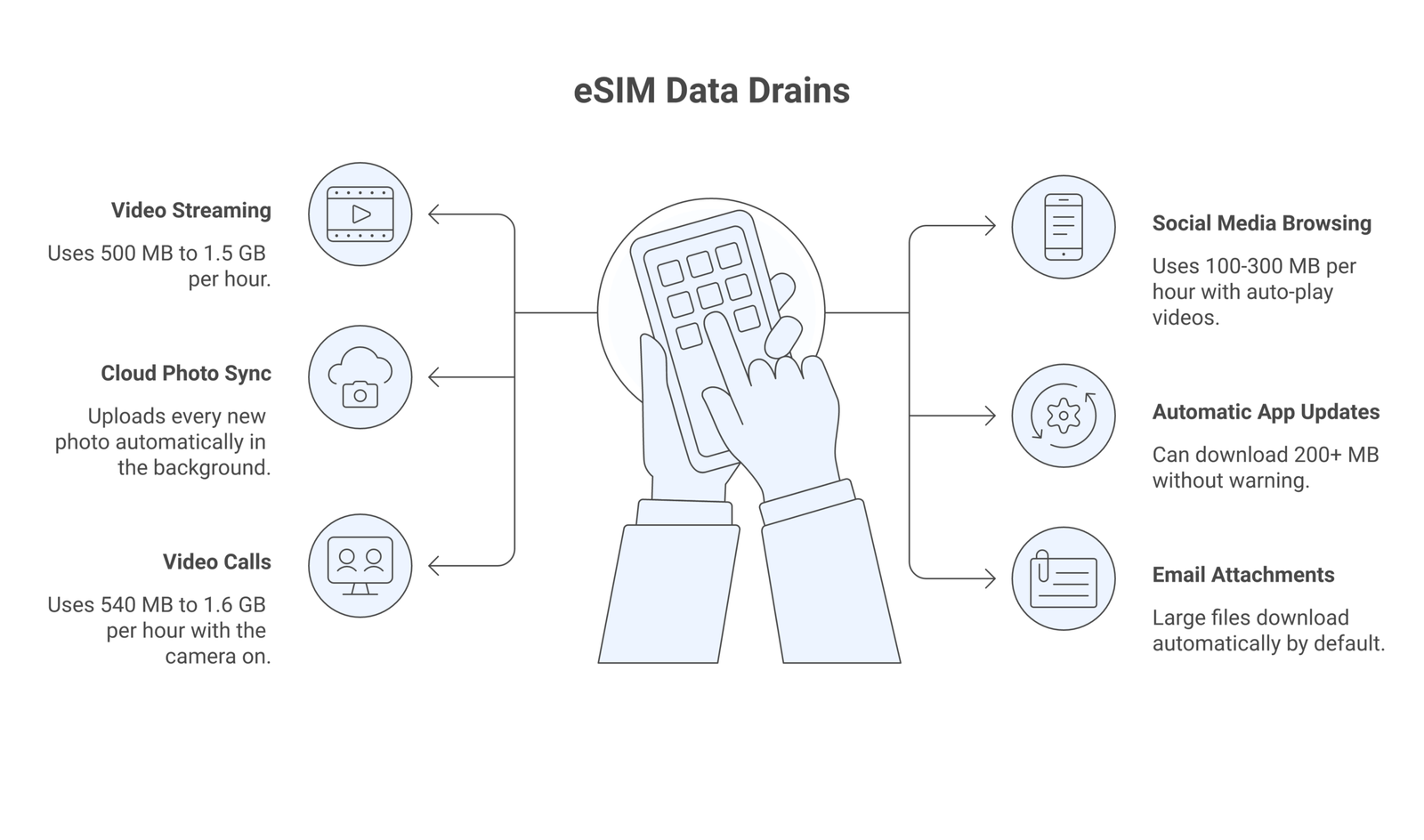
This is the obvious one. Watching YouTube at 720p burns through about 1.5 GB per hour. Even at 480p, you’re looking at 500 MB per hour according to Google’s data usage breakdown. On a 5 GB plan, that’s less than 4 hours of standard definition video before you’re done.
The fix: lower the default streaming quality. In YouTube, tap your profile > Settings > Video quality preferences > On mobile networks > Data saver. Netflix has a similar setting under App Settings > Cellular Data Usage > Save Data.
Social media
Instagram, TikTok, and Facebook are heavy data consumers because they auto-play videos as you scroll. Instagram alone can use 100-200 MB per hour of casual browsing. TikTok is worse, averaging 200-300 MB per hour because every swipe loads a new video.
In Instagram, go to Settings > Account > Cellular Data Use > toggle on “Use Less Data.” In TikTok, go to Settings > Cache & Cellular Data > Data Saver. For Facebook, enable Data Saver mode under Settings > Media.
Automatic app updates
Your phone might decide to download a 200 MB app update over cellular without asking. On iPhone, go to Settings > App Store > disable “Mobile Data” under Automatic Downloads. On Android, open Google Play Store > Settings > Network preferences > Auto-update apps > WiFi only.
Email attachments
If you use Gmail or Outlook, large attachments download automatically. Switch to “load images manually” in email settings and avoid downloading attachments until you’re on WiFi. This is especially relevant for business travelers who receive large PDF reports or presentations.
Real-time data monitoring while traveling
Once you’re on the ground and using your eSIM, you need to keep an eye on consumption. There are several ways to do this.
Use your eSIM provider’s app
Most eSIM providers like Airalo, Holafly, and Nomad have companion apps that show remaining data in real time. Airalo’s app displays a percentage bar and exact MB remaining. Holafly shows daily usage breakdowns. Check these once or twice a day to stay on track.
Built-in phone tracking
Your phone tracks data usage per SIM line. On iPhone, go to Settings > Cellular and scroll down to see per-app data usage for your current period. Reset the statistics at the start of your trip so you get accurate numbers. On Android, go to Settings > Network & Internet > SIMs > your eSIM to see total and per-app usage.
One useful habit: check your data usage every evening. If you’re burning through data faster than expected, you can adjust your behavior the next day instead of discovering you’re out of data at the worst possible moment.
Third-party data tracking apps
Apps like My Data Manager (available on both iOS and Android) provide detailed breakdowns with alerts. You can set daily data budgets and receive push notifications when you’re approaching limits. DataMan Pro on iPhone offers a real-time floating widget showing consumption.
📝 Important Note
There’s often a discrepancy between what your phone reports and what your eSIM provider shows. Your phone measures data sent and received at the device level, while your provider measures at the network level. The provider’s number is what counts for your plan limits, so always cross-check with their app.
Choosing the right eSIM data plan for your trip
The best data management starts with buying the right plan. Here’s a rough guide based on actual usage patterns.
Light users (1-3 GB): You mostly use messaging apps, check emails, use maps for navigation, and browse occasionally. You don’t stream video on cellular. This covers most short weekend trips.
Moderate users (5-10 GB): You browse social media daily, make video calls occasionally, use ride-sharing apps, and upload some photos. Good for week-long vacations where you’re out exploring during the day and on hotel WiFi at night.
Heavy users (15+ GB): You work remotely, stream content, use hotspot for a laptop, or post lots of photos and videos to social media. Consider unlimited plans from providers like Holafly, or a regional plan with generous data allowances. We’ve reviewed the best eSIM providers with unlimited data if you need that kind of coverage.
The GSMA reports that eSIM adoption for travel has grown significantly, and providers now offer more flexible options than the early days. Many now support data top-ups through their apps, so you’re not completely stuck if you underestimate your needs. Airalo, for example, lets you purchase additional data packs mid-trip that activate immediately.
WiFi strategies that reduce eSIM data usage
Your eSIM shouldn’t be doing all the heavy lifting. Strategic use of WiFi will stretch your data plan significantly.
Hotels and accommodation: Do your data-heavy tasks here. Upload photos to cloud storage, download offline content for the next day, run app updates, and make video calls. Almost every hotel, hostel, and Airbnb offers WiFi. Queue up all your syncing for when you’re back at your room.
Cafes and restaurants: In most tourist cities, cafes offer free WiFi. Use these stops to sync messages, upload stories, and check heavier content. Cities like Paris, Tokyo, and Seoul also have extensive municipal WiFi networks.
Airport WiFi: Most international airports offer free WiFi, sometimes with time limits. Use your layover to download maps, entertainment, and sync everything before heading to your destination.
💡 Pro Tip
When using public WiFi, always use a VPN to protect your data. The FCC warns that unsecured public networks are common targets for data interception. A VPN adds about 5-10% data overhead but keeps your passwords and personal information secure.
Managing dual SIM setups for maximum efficiency
If you’re using a travel eSIM alongside your home physical SIM, proper configuration is key. The goal is to use your eSIM only for data while keeping your home SIM active for calls and SMS (especially for two-factor authentication codes).
On iPhone, go to Settings > Cellular and configure your cellular data to use your travel eSIM line. Set your default voice line to your home SIM. This way, incoming calls still ring on your home number, but all internet traffic goes through the local eSIM network instead of expensive international roaming.
Turn off data roaming on your home SIM line. Go to Settings > Cellular > your home SIM > turn off Data Roaming. This prevents accidental roaming charges if your phone briefly switches to the home SIM for data. The FCC has documented cases of travelers receiving surprise bills exceeding $1,000 from unintentional roaming.
On Android, the process varies by manufacturer. Samsung devices let you set a preferred SIM for data under Settings > Connections > SIM Manager. Google Pixel phones handle this under Settings > Network & Internet > SIMs. The key is making sure only your travel eSIM is set as the data line. For more details, check our guide on using multiple eSIMs on one phone.
Data-efficient alternatives to common travel apps
Some apps are inherently more data-efficient than others. When every megabyte counts, consider these swaps.
Navigation: Maps.me and OsmAnd work entirely offline after downloading map data. Google Maps offline mode is good but still uses some data for traffic and transit updates.
Messaging: WhatsApp and Telegram are relatively light on data for text messaging. Sending voice messages uses about 0.3 MB per minute compared to a voice call at 0.5-1 MB per minute. Avoid sending uncompressed photos through messaging apps; the compressed versions they send by default use a fraction of the data.
Browsers: Opera Mini and Chrome’s Lite Mode compress web pages, reducing data use by up to 90% according to Opera’s documentation. This is especially useful for casual browsing and reading articles.
Email: Set email to fetch manually instead of push notifications. This alone can save 50-100 MB per day for heavy email users. Check email when you want to, not every time a new message arrives.
What to do when you’re running low on data
You’ve hit 80% usage with three days left. Here’s your emergency protocol.
First, check if your provider offers top-ups. Airalo, Holafly, and most modern eSIM providers let you purchase additional data through their app. Prices are usually reasonable, often cheaper per GB than your original plan since you’re buying exactly what you need.
Activate extreme conservation mode. Turn off cellular data entirely when you’re not actively using your phone. Disable all notifications except messaging apps. Switch to text-only browsing. Use WiFi exclusively for anything beyond basic messaging and maps.
Consider buying a second eSIM. Most modern phones support multiple eSIM profiles (iPhone 14 and later support up to 8 eSIM profiles, though only two can be active simultaneously). You can install a new plan without losing your existing one. The Apple support page explains how to manage multiple eSIM profiles.
Business traveler data management
Business travelers have different needs than vacationers. If you travel for work regularly, our eSIM for business travelers guide covers the full picture. You probably can’t skip checking email or avoid video calls. Here’s how to manage work requirements without burning through your data plan.
Video calls: Zoom, Teams, and Google Meet use 540 MB to 1.62 GB per hour depending on video quality, according to Zoom’s system requirements page. Turn off your camera when possible to drop this to about 60-90 MB per hour for audio only. If video is required, lower the resolution in the app settings.
VPN usage: Corporate VPNs add 5-15% data overhead due to encryption. If your company uses a full-tunnel VPN (all traffic routed through the corporate network), this overhead applies to everything, including personal browsing. Ask your IT department about split-tunnel configurations that only route work traffic through the VPN.
Cloud documents: Working in Google Docs or Microsoft 365 online uses minimal data for text documents (a few MB per hour). Avoid large spreadsheets with heavy formatting or embedded images on cellular. Download files you need to edit and sync them back when on WiFi.
⚠️ Disclaimer
Data consumption figures mentioned in this article are approximate and may vary based on device, operating system version, app version, and network conditions. Always verify current data usage rates with your specific apps and provider. Information accurate as of March 2026.
Frequently Asked Questions
For most travelers, 3-5 GB is enough for a week if you use WiFi at your hotel for heavy tasks. If you plan to work remotely, make video calls, or stream content on cellular, aim for 10-15 GB or an unlimited plan.
Can I top up my eSIM data if I run out?Most eSIM providers including Airalo, Holafly, and Nomad offer data top-up options through their apps. Some activate instantly while others may take a few minutes. Check your provider’s top-up policy before your trip so you know the process if you need it.
Does using a VPN increase eSIM data usage?Yes, VPN encryption adds approximately 5-15% overhead to your data consumption. This means if you’d normally use 1 GB, you’d use about 1.05-1.15 GB with a VPN running. The added security is usually worth the small increase, especially on public WiFi networks.
Why does my phone show different data usage than my eSIM provider?Your phone measures data at the device level, while your eSIM provider measures at the network level. Network-level measurement includes protocol overhead that your device doesn’t count. The provider’s measurement is what determines when your plan runs out, so always check their app for accurate remaining data.
Should I turn off my home SIM when using a travel eSIM?You don’t need to turn off your home SIM entirely. Instead, disable data roaming on your home SIM and set your travel eSIM as the cellular data line. Keep your home SIM active for calls and SMS, especially for receiving two-factor authentication codes from your bank and other services.