
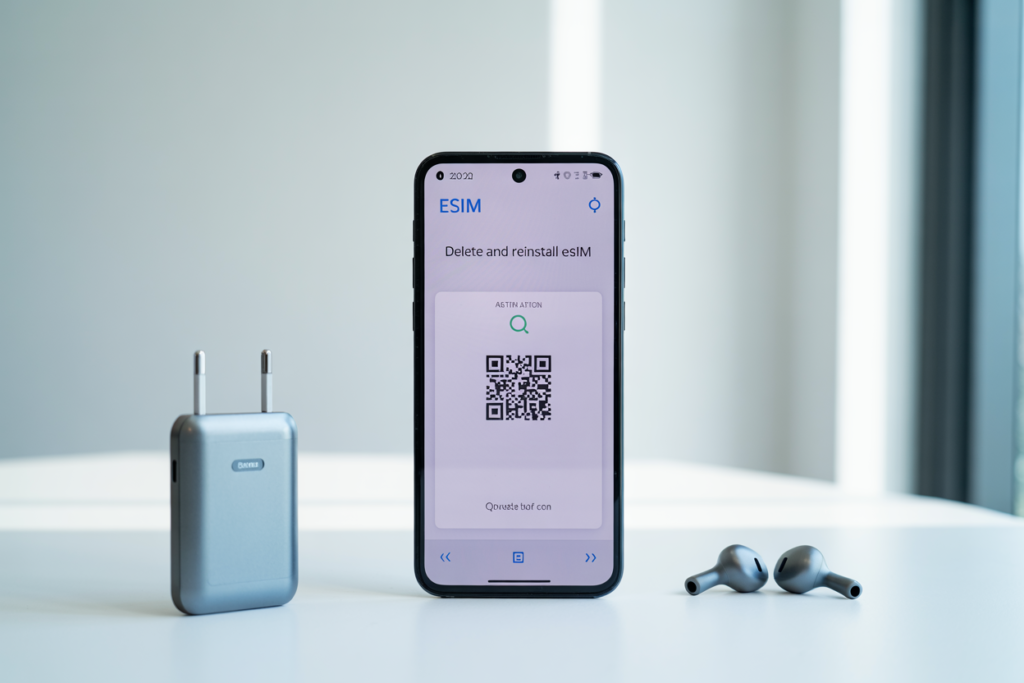
How to Delete and Reinstall eSIM Without Losing Service
If you need to delete and reinstall eSIM on your phone, slow down before you tap anything. The process is simple on paper, but one wrong move can leave you without service until your carrier issues a fresh activation. In most cases, deleting an eSIM removes the profile from the device only, while your mobile line stays active on the carrier side. Reinstalling usually means scanning a QR code again, restoring from a carrier app, or asking support to push a new profile. The delete and reinstall eSIM workflow is safest when you confirm carrier rules first, stay on Wi-Fi, and keep your activation details nearby.
📺 Video Guide
💡 Pro Tip
Before you remove anything, screenshot your eSIM details, confirm your phone is unlocked, and make sure you have stable Wi-Fi. That tiny prep step saves a lot of pain.
When should you delete an eSIM?
People usually delete an eSIM for one of four reasons: they are moving to a new phone, fixing a broken mobile data setup, wiping a device before selling it, or replacing a travel plan that has expired. According to the GSMA’s overview of eSIM technology, eSIM profiles are managed digitally through remote provisioning, which is why removal and reinstallation depend on carrier rules rather than a plastic card you can pop in and out.
That distinction matters. Deleting a local profile does not always cancel your line, and reinstalling it is not always self-service. Apple’s eSIM support documentation explains that activation methods vary by carrier and region. Google’s Pixel eSIM help says roughly the same thing for Android users. So the real question is not just how to delete and reinstall eSIM, but whether your carrier lets you do it instantly or makes you request a new activation.
If your issue is just missing data, weak signal, or APN confusion, start with a troubleshooting path before you erase the profile. We already covered that in eSIM troubleshooting: common issues and how to fix them. Deletion is the clean-reset option, not always the first option.
✓ Good reasons to remove an eSIM
- ✓ You are transferring your line to a new device
- ✓ Your carrier told you to reinstall after an activation failure
- ✓ You are erasing or selling the phone
- ✓ A travel eSIM expired and you want to remove clutter
What to check before you remove the profile
This is the part most people skip, then regret. First, confirm whether your carrier allows the same QR code to be reused. Some do, some do not. Some let you restore from their app, while others issue a fresh activation every time. Verizon’s eSIM activation guidance, T-Mobile’s SIM and eSIM support hub, and AT&T’s eSIM setup page all show slightly different flows. That’s your warning sign right there: the reinstall process is carrier-specific.
Second, check whether the device is carrier-unlocked. If your phone is locked, a third-party travel eSIM may not activate even if the hardware supports eSIM. The FCC’s phone unlocking FAQ is worth reading if you are not sure what “unlocked” really means. Travelers often discover this too late, especially before a trip.
Third, make sure you have a second connection. Reinstallation usually needs Wi-Fi or another working SIM. If your main line is the only way you get one-time passwords, keep that in mind before removing it. If you are managing multiple profiles, our guide on how to use multiple eSIMs on one phone can help you plan the swap without cutting yourself off.
Finally, write down what you are removing. Save the carrier app login, confirmation email, QR code, SM-DP+ details if provided, and the phone’s EID. You can usually find the EID in the device settings or by checking the instructions from Apple or Google. That makes support calls much shorter.
📝 Important Note
Deleting the eSIM profile from your phone is not the same as canceling your plan. Billing and line status stay with the carrier unless you cancel separately.
How to delete and reinstall eSIM on iPhone and Android
On iPhone, the exact labels change a little by iOS version and region, but the path is usually Settings > Cellular or Mobile Data > choose the line > Remove Cellular Plan or Delete eSIM. Apple also provides a broader reset option under Transfer or Reset iPhone when you want to clear all eSIMs before wiping the device. If your goal is moving service to another iPhone, check our separate guide on how to switch eSIM between phones, because transfer can be smoother than delete-then-rebuild.
On Android, the menus depend on the manufacturer. Pixel phones generally place eSIM settings under Network & internet, while Samsung uses Connections and SIM manager. Google’s support docs for adding or removing an eSIM on Pixel and Samsung’s eSIM setup help both show the same idea: select the profile, remove it, then add a new one through QR scan, carrier app, or manual entry.
If you are reinstalling the same provider, start by opening the carrier app or the original activation email. Some travel providers let you tap a stored install button again. Others require a new QR code. Mainline carriers often verify the IMEI or EID before they push a replacement. If this is your first setup, our published guides for setting up eSIM on iPhone and setting up eSIM on Android give the step-by-step screens.
For travel eSIMs, it is smart to install before departure but activate only when needed. That habit makes reinstalls easier too, because you know where the original confirmation email lives. It also reduces the chance that you are troubleshooting airport Wi-Fi while half-awake and trying to decode a QR code from a dim screen.
A simple removal and reinstallation checklist
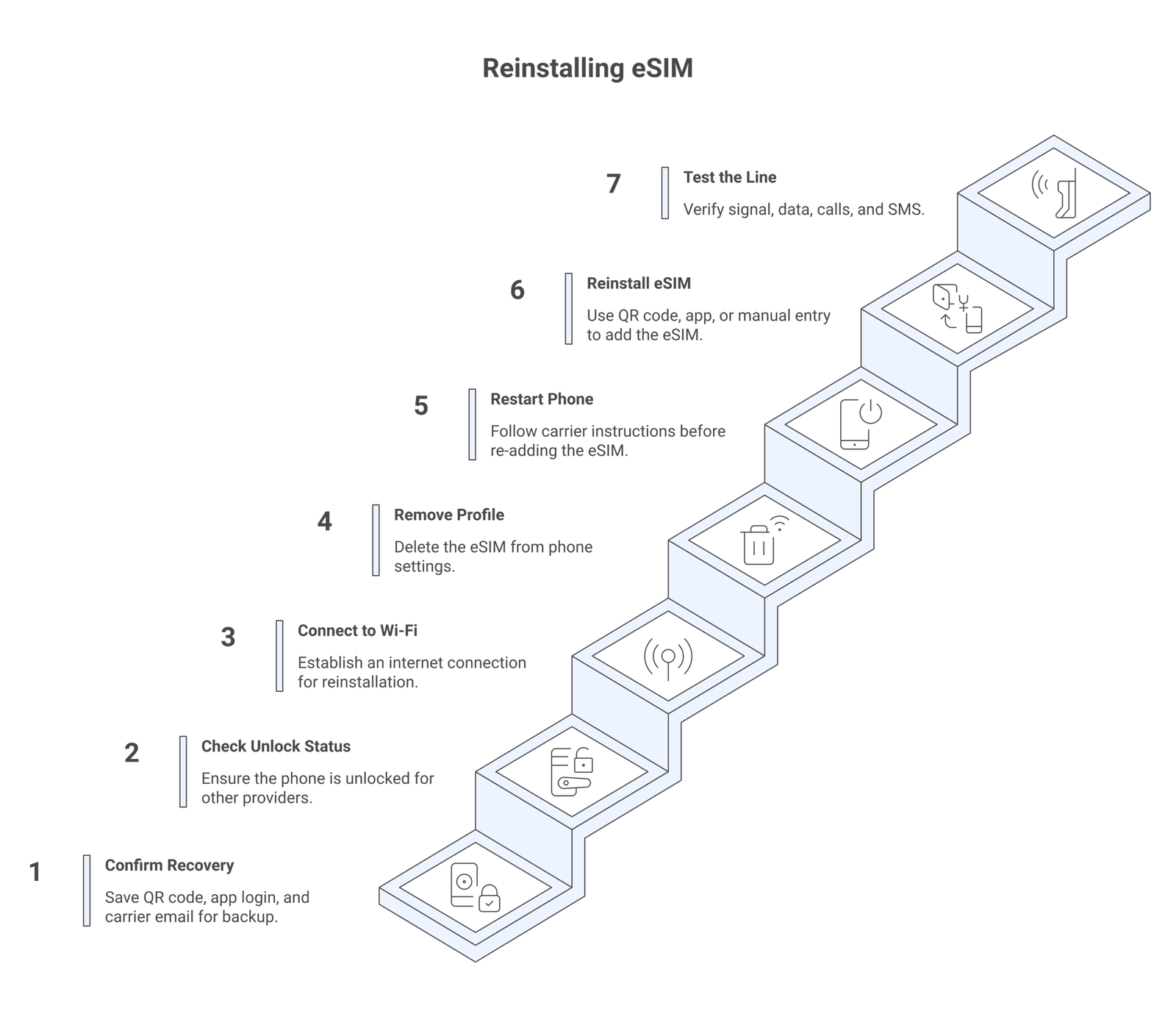
Here is the safest sequence if you want to delete and reinstall eSIM without surprises.
1. Connect to reliable Wi-Fi.
2. Confirm the line can be restored and save the activation details.
3. Disable any VPN if your carrier app struggles during activation.
4. Delete the eSIM profile from the phone settings.
5. Restart the device if the carrier recommends it.
6. Re-add the eSIM using QR code, carrier app, or manual entry.
7. Wait for signal registration, then test data, calls, and SMS.
8. Check whether data roaming needs to be enabled for travel plans.
That middle step matters more than it looks. A lot of “my eSIM is gone” stories are really “I deleted the profile before confirming I could get it back.” If your phone still shows no service after reinstalling, compare the line settings with the carrier instructions and review our guide on eSIM security and device checks so you know the profile is active on the right device.
The good news is that once the profile downloads correctly, most problems clear up fast. eSIM failures tend to be activation issues, not long-term hardware mysteries.
⚠️ Disclaimer
Carrier rules, menu labels, and transfer tools can change by country, phone model, and software version. Check your provider’s latest instructions before removing an active line. This article reflects common workflows as of April 2026.
Common mistakes that make reinstallation fail
The most common failure is assuming the original QR code still works. Some providers allow reuse, but many do not. The second common failure is trying to reinstall on mobile data after deleting the only active line. The third is keeping an old lock on the device, which blocks activation from another provider. None of these are exotic problems. They are boring, predictable setup issues, which is why a checklist beats improvisation.
Another mistake is deleting the wrong profile on dual-SIM phones. If you run a home number and a travel eSIM together, label them clearly before you touch anything. Apple and Android both support custom line labels, and that small bit of housekeeping is worth doing. You do not want to be the person who deletes the banking-number line right before a login request.
If you are seeing profile conflicts, reset network settings only if your carrier specifically suggests it. That can help, but it also wipes saved Wi-Fi and cellular preferences. Start with the narrow fix, not the nuclear one.
💡 Pro Tip
If you are about to factory reset a phone, check whether the erase flow lets you keep eSIMs. That option can save you from reinstalling everything later.
Is deleting and reinstalling an eSIM actually worth it?
Sometimes yes, sometimes no. If the problem is a stuck activation, failed transfer, or corrupted profile, reinstalling is often the cleanest fix. If the problem is pricing, weak destination coverage, or wrong plan size, deletion alone solves nothing. In that case you need a better provider or a different regional plan.
Travelers should also think about timing. Doing this at home, with Wi-Fi and support hours available, is easy. Doing it in transit is chaos. So if you already know you will switch providers, handle the delete and reinstall eSIM process before the travel day whenever possible.
The practical answer is simple: remove the profile only when you know how you are going to restore service. That sounds obvious, but it’s the whole game.
Frequently Asked Questions
Usually no. It removes the profile from the device, but your carrier account and billing typically stay active until you cancel the line separately.
Can I reuse the same QR code after I delete an eSIM?Sometimes, but not always. Many carriers and travel eSIM providers issue a fresh QR code or require reactivation through their app.
Do I need Wi-Fi to reinstall an eSIM?In most cases yes. The phone needs an internet connection to download the profile from the carrier or provider server.
What if the eSIM installs but mobile data still does not work?Check whether the correct line is selected for data, whether data roaming is enabled for travel plans, and whether the carrier has finished activation on its side.
Should I delete an expired travel eSIM?If you no longer need it, yes. Removing expired profiles keeps your SIM list cleaner and reduces the chance of picking the wrong line later.