
How to Switch eSIM Between Phones: Complete Transfer Guide
You just got a new phone. The excitement lasts about five minutes before you realize your eSIM is still sitting on your old device. Unlike a physical SIM card you can pop out and slide into a new slot, an eSIM lives inside the phone’s embedded chip. So how do you move it? The process is actually straightforward on both iPhone and Android, but the exact steps depend on your device, carrier, and operating system version.
This guide walks through every method for transferring an eSIM between phones, whether you’re upgrading within the same brand or switching from iPhone to Android (or vice versa). We’ll cover what works, what doesn’t, and a few gotchas that trip people up.
What Happens to Your eSIM When You Switch Phones
An eSIM profile is tied to the specific device it was activated on. When you want to move to a new phone, you can’t just copy the profile over like a file. You need to either transfer it (on supported devices) or deactivate it on the old phone and reactivate it on the new one. The GSMA, the organization that developed the eSIM standard, designed the system this way for security reasons. Each eSIM profile is cryptographically bound to a single device at a time.
The good news: most carriers now support eSIM transfers. The bad news: the process varies wildly depending on whether you’re on Apple, Samsung, Google, or another manufacturer. Some carriers handle transfers instantly through their app, while others require you to call customer support and wait on hold.
How to Transfer eSIM from iPhone to iPhone
Apple made iPhone-to-iPhone eSIM transfers relatively painless starting with iOS 16. If both phones run iOS 16 or later, you have two main options.
Method 1: eSIM Quick Transfer During Setup
When you set up your new iPhone using Quick Start (that screen where you hold the two phones near each other), you’ll see an option to transfer your cellular plan. Tap it, confirm on your old phone, and the eSIM profile moves over. The whole thing takes about two minutes. Apple’s official support page walks through this in detail, but honestly, the on-screen prompts are clear enough.
Method 2: Transfer After Setup via Settings
Already past the setup screen? No problem. On your new iPhone, go to Settings > Cellular > Add eSIM (or Add Cellular Plan on older iOS versions). If your old iPhone is nearby and on the same Wi-Fi network, you’ll see the option to transfer from another iPhone. Select the plan, confirm on the old device, and wait for the transfer to complete.
One thing worth knowing: not all carriers support Apple’s eSIM Quick Transfer. Carriers like T-Mobile, AT&T, and Verizon in the US support it, but some smaller carriers and MVNOs don’t. If the transfer option doesn’t appear, your carrier may require you to deactivate and reactivate instead.
💡 Pro Tip
Both iPhones need to be running iOS 16 or later for eSIM Quick Transfer to work. If your old phone is on an older version, update it first or use the carrier app method instead.
How to Transfer eSIM from Android to Android
Android’s eSIM transfer process depends heavily on the manufacturer. Samsung and Google Pixel phones handle this differently.
Samsung phones
On Samsung Galaxy devices running One UI 4.0 or later, go to Settings > Connections > SIM Manager > Add eSIM. Samsung doesn’t have a direct phone-to-phone transfer like Apple does. Instead, you’ll typically need to scan a new QR code from your carrier or use your carrier’s app to provision a new eSIM profile on your new Samsung phone. Before doing this, delete or deactivate the eSIM on your old Samsung device. The Samsung support site has device-specific instructions for each Galaxy model.
Google Pixel phones
Google added an eSIM transfer feature in Android 13. On Pixel 7 and newer devices, you can transfer your eSIM during the initial setup process, similar to Apple’s Quick Transfer. Go to Settings > Network & internet > SIMs > Download a SIM on the new Pixel. Google’s documentation at support.google.com covers the specifics for each Pixel model.
How to switch eSIM between iPhone and Android
Cross-platform transfers (iPhone to Android or vice versa) don’t support direct device-to-device eSIM transfer. The eSIM Quick Transfer feature only works between two iPhones or two compatible Android devices. When switching ecosystems, you’ll need to go through your carrier.
Here’s the process:
- Delete or deactivate the eSIM on your current phone
- Contact your carrier (via app, website, or phone) and request a new eSIM activation for your new device
- Scan the new QR code or use the carrier app to install the eSIM on your new phone
- Test your connection by making a call and checking mobile data
Some carriers charge a fee for reissuing an eSIM, though most major carriers like Verizon and AT&T do it for free. If you’re using a travel eSIM from a provider like Airalo or Holafly, you’ll usually need to purchase a new plan entirely since most travel eSIM providers don’t support profile transfers.
📝 Important Note
Don’t factory reset your old phone before transferring or deactivating the eSIM. A factory reset can lock the eSIM profile, making it harder to release for reactivation on a new device.
Using your carrier app for eSIM transfer
Most major carriers now offer eSIM management through their apps, and this is often the easiest transfer method regardless of what phones you’re using. Here’s how the big carriers handle it:
T-Mobile: Open the T-Mobile app on your new phone, sign in to your account, and follow the prompts to activate your line. The app detects that you’re on a new device and offers to set up your eSIM automatically.
Verizon: Use the My Verizon app or call 1-800-922-0204. You can also visit verizon.com and go through the device activation flow.
AT&T: The myAT&T app lets you activate an eSIM on a new device. You’ll need to remove the eSIM from your old phone first through Settings > Cellular > Remove eSIM.
European carriers vary more in their support. Vodafone, O2, and Deutsche Telekom all support eSIM transfers through their respective apps, though the exact steps differ. In most cases, you’ll need to contact support if the app doesn’t offer a self-service option.
Transferring travel eSIMs from providers like Airalo or Holafly
If you’re using a travel eSIM rather than a carrier eSIM, the transfer rules are different. Most travel eSIM providers, including Airalo and Holafly, bind each eSIM profile to a single device. You typically can’t transfer an active travel eSIM to a different phone.
What you can do: if you haven’t activated the eSIM yet (just purchased it), some providers let you install the QR code on a different device. Once activated and connected to a network, though, the eSIM is locked to that device. If you need to manage multiple eSIMs across devices, plan ahead and install them on the device you’ll actually be using during your trip.
✓ Quick checklist before switching
- ✓ Both phones are charged and connected to Wi-Fi
- ✓ Both phones are running the latest OS version
- ✓ You have your carrier account login ready
- ✓ You haven’t factory reset the old phone yet
- ✓ You’ve backed up any saved Wi-Fi calling or voicemail settings
Troubleshooting common eSIM transfer issues
Things don’t always go smoothly. Here are the most common problems people run into when switching eSIMs between phones, and how to fix them.
“Transfer eSIM” option doesn’t appear: This usually means your carrier doesn’t support Apple’s or Google’s built-in transfer. Use the carrier app instead, or contact their support for a new QR code. According to FCC guidelines, carriers are required to unlock and transfer your service within two business days of a request.
eSIM activates but no data connection: Go to Settings > Cellular (iPhone) or Settings > Network (Android) and make sure the eSIM line is set as your primary data line. Also check that data roaming is enabled if you’re in a different country.
Error: “eSIM cannot be transferred”: This happens when the eSIM profile is still active on the old device. Go back to the old phone, navigate to cellular settings, and remove or deactivate the eSIM before trying again on the new phone.
Carrier says “IMEI not compatible”: Not every phone supports eSIM, and some carrier-locked phones restrict eSIM use. Check your new phone’s eSIM compatibility on the GSMA device database, or look up your specific model on your carrier’s website. If you’re unsure about dual SIM setups, that guide covers compatibility in detail.
What about keeping eSIMs on both phones?
You can’t have the same carrier eSIM active on two phones simultaneously. That’s by design. Your phone number is tied to one device at a time, just like with a physical SIM card. If you want connectivity on both devices, you’d need a second line or a portable hotspot for the secondary device.
Some carriers do offer multi-device plans where your number rings on multiple devices (Apple Watch, iPad), but those use separate eSIM profiles, not a shared one. Each device gets its own unique eSIM installation linked to the same account.
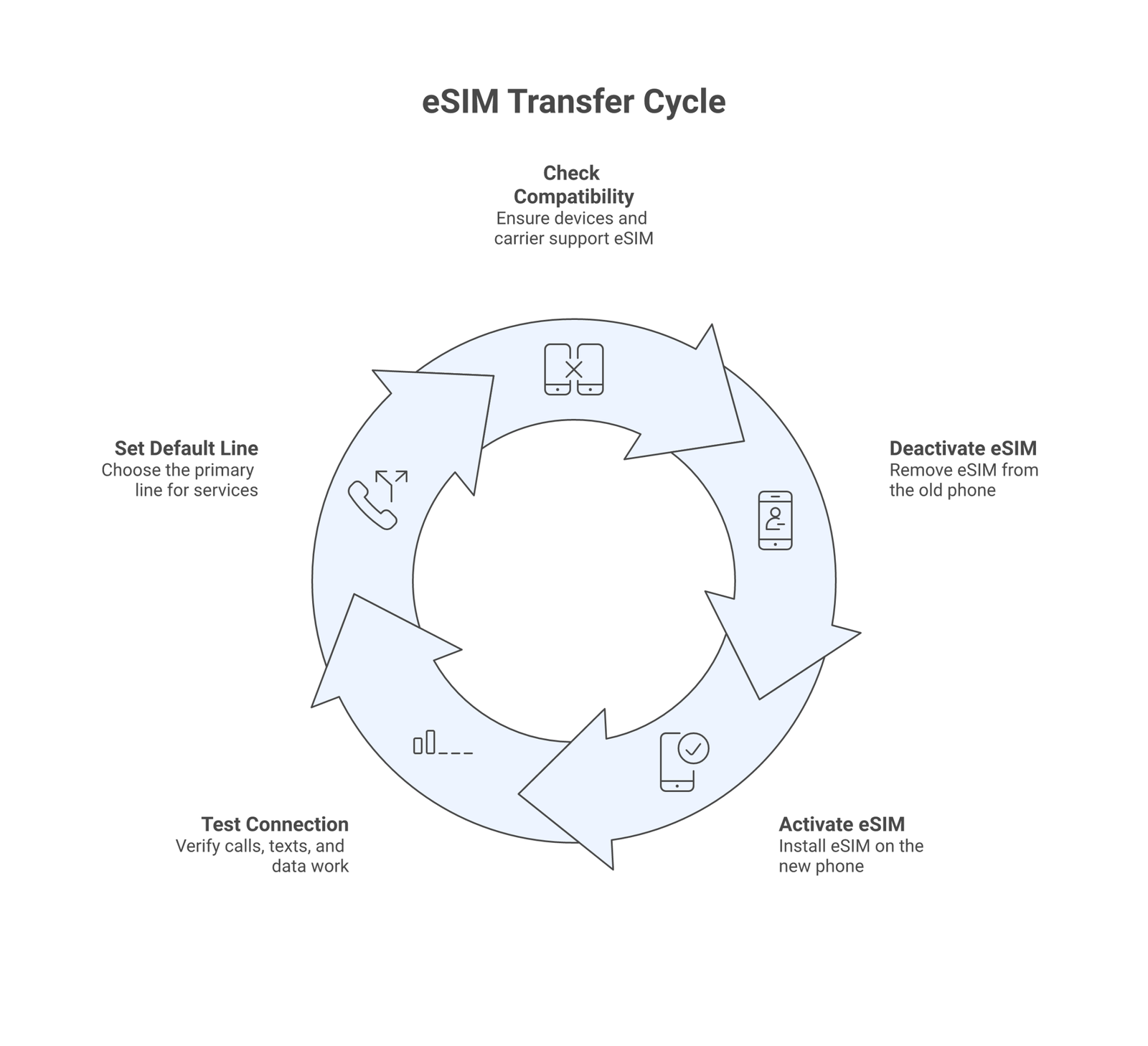
Step-by-step summary
Regardless of which method you use, the basic flow is the same:
- Check compatibility – Make sure your new phone supports eSIM and your carrier supports eSIM transfers
- Deactivate on old phone – Remove or deactivate the eSIM profile in your old phone’s settings
- Activate on new phone – Use Quick Transfer, your carrier’s app, a QR code, or contact carrier support
- Test everything – Make a call, send a text, and browse the web to confirm your connection works
- Set as default line – If you have a dual SIM setup, choose which line handles calls, texts, and data
⚠️ Disclaimer
eSIM transfer processes and carrier policies change regularly. The steps described here are accurate as of March 2026. Always check your specific carrier’s current support documentation before starting a transfer. Some carriers may charge fees or have different procedures depending on your plan type.
Frequently Asked Questions
Not directly. Cross-platform transfers (iPhone to Samsung, for example) require you to deactivate the eSIM on your old phone and get a new eSIM activation from your carrier for the new device. The direct Quick Transfer feature only works between devices from the same ecosystem.
Do I lose my phone number when switching eSIM to a new phone?No. Your phone number stays with your carrier account, not the eSIM profile itself. When you transfer or reactivate your eSIM on a new device, your number comes with it.
How long does an eSIM transfer take?Using Apple’s Quick Transfer or a carrier app, the process usually takes 2 to 5 minutes. If you need to contact your carrier by phone or visit a store, it could take 15 to 30 minutes depending on wait times.
Is there a fee to transfer an eSIM?Most major carriers (T-Mobile, AT&T, Verizon, Vodafone) don’t charge for eSIM transfers. Some smaller carriers or MVNOs might charge a small reactivation fee, typically between $5 and $10. Check with your specific carrier before starting.
Can I transfer an eSIM if my old phone is broken or lost?Yes, but you’ll need to contact your carrier directly. They can deactivate the eSIM on the old device remotely and issue a new eSIM profile for your replacement phone. Have your account details and identification ready when you call.